
Turn arrays into action! Let your students; ‘choose’, ‘throw’, and ‘catch’ emojis wirelessly with the BBC micro:bit!
This guide is part of a three‑lesson sequence: Arrays → Radio → Emoji Catch. Each guide builds on the last and prepares students for the final two‑player game.
Teaching coding concepts often works best when students can immediately see and feel the results of their work. After completing the Introduction to Arrays and the introduction to micro:bit radio guides, Emoji Catch offers a lively way for learners aged 11+ to put their new knowledge into practice.
We’ve split this guide into two sections; Section one is the teacher specific information, and step two is for the pupils to work through. Decide how hands on/off you want to be with this exercise based on how well you know your class, and/or how well they completed the introductory tasks.
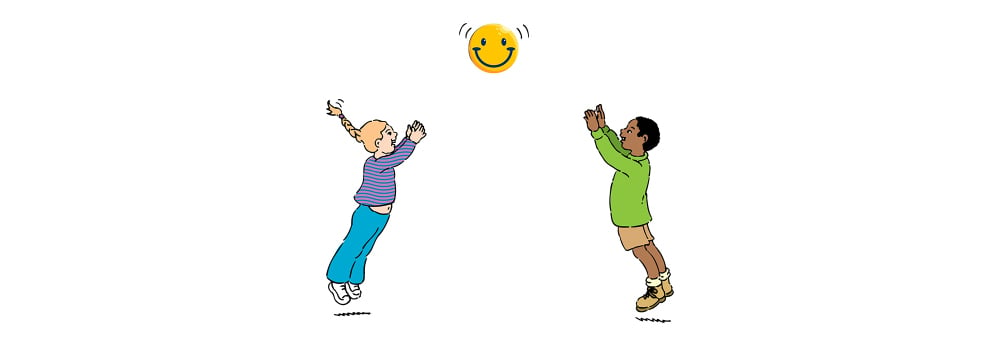
Emoji Catch is a two-player micro:bit game. This activity combines event handling, radio communication, and creative LED design into a playful challenge, where students “throw” and “catch” emojis between devices.
Note, 8+: If you have a class of younger students, 8+, you could perhaps pre-load micro:bits with the code and either use the emoji catch game to talk about communication, or just as a reward for completing an earlier task satisfactorily.
Teacher Information:
Learning goals
- Event handling: Buttons and gesture inputs.
- Data structures: Using lists to store emoji icons.
- Wireless Connectivity: micro:bit radio messages.
- Creativity: Designing custom 5×5 LED patterns.
What you need
- 2 × micro:bit (with battery pack or USB power) per pair of students.
- 2 × wearable straps suitable for micro:bit.
- Computers with MakeCode.
- Two identical radio group numbers set on both devices.
Safety note: Remind students to make gentle “throw” motions. No flinging arms near others or launching micro:bits.
Possible teaching flow
- Warm‑up: Show a simple emoji on a micro:bit and ask how a 5×5 picture might be stored. Briefly recap arrays and radio groups from the primers.
- Build the emoji set: Students design one or more emojis in the MakeCode image editor, save each to a variable, and add all emoji variables into an
emojisarray. Show the first emoji on start. - Add navigation: Button A moves to the previous emoji, Button B moves to the next. Wrap around at the ends. Students test scrolling through their emoji list.
- Add the “throw” mechanic: On shake, send the current emoji index via radio and play a short confirmation tone. Students test sending between devices.
- Add the “catch” mechanic: On radio received number, show
emojis[receivedNumber]and play a distinct “received” tone. Students test sending back and forth. - Play the game: Player 1 chooses an emoji and “throws” it. Player 2 “catches” it and replies with their own. Encourage quick turn‑taking once they’re confident.
Troubleshooting
- No emoji received: Check both micro:bits use the same radio group; confirm power and pairing.
- Too sensitive shake: Encourage smaller wrist movements; optionally switch to “logo up” or “logo down” as alternative gestures.
- Confusing images: Simplify patterns; ensure recognisable shapes with symmetry and clear eyes/mouth.
- Classroom data collisions: Use different radio groups for different pairs.
MakeCode
This version uses images and indexes, works on both players (flash the same program to both). Change radio.setGroup(8) to any shared number for your class.
The Code
| Follow the full series below: Emoji Catch | |
|---|---|
| ▶ Primer 1: Arrays | 🔗 Intro to Arrays |
| ▶ Primer 2: Radio | 🔗 Intro to Radio |
| ▶ Main Guide | 📍 You are here |
Student Guide – Emoji catch with the BBC micro:bit
The code we are going to create makes use of Arrays, a concept that can feel difficult at first, so we recommend that you work through the two primer guides first. Ensure that you are comfortable with variables, arrays, and radio groups on the micro:bit.
There is only one program to create, and once complete it is loaded onto both micro:bits in a group. In a classroom setting with several pairs of students, each pair must have their own radio group. This ensures you can run as many games simultaneously as are needed.
Emoji list
Here is a list of the emojis we are going to create, with a short explanation of what they mean in the context of your game. Each emoji is a 5×5 LED pattern. You can start with these and, if prompted by the teacher, come up with your own:
- Smiley: happy mood
- Sad face: not happy mood
- Thinking: not sure, I’ll let you know
- Heart: I love it
- Snowflake: I’m feeling festive, or snowball fight!
- Ball: simple catch game symbol
Visual reference (5×5)
Tip: Example micro:bit-style representations, these can be used as a reference:
Smiley
Sad face
Thinking
Heart
Snowflake
Ball
Setup steps
- Attach straps: Fix each micro:bit to a wrist strap. Check comfort and orientation.
- Open MakeCode: Go to the micro:bit MakeCode editor and create a new project.
- Set radio group: Choose a number (e.g., 1). Both devices must use the same group.
- Create emoji images: Define 5×5 images for each emoji and store them in a list.
- Button controls: Button A moves left, Button B moves right through the list; show the current emoji.
- Throw gesture: On shake, send the current emoji index using radio.
- Receive + beep: On receiving an index, display that emoji and play a short tone.
- Test: Try sending between devices. Get students to experiment with shaking amount required.
Emoji catch challenge
Fresh from your radio and arrays primers, turn this activity into a discovery game. Read each challenge, try it on your micro:bit, and jot down what you notice.
Emoji images
- Design: Can you draw six emojis on the 5×5 grid that your friends will recognise?
- Variety: Which set feels most distinct (Smiley, Sad, Thinking, Heart, Snowflake, Ball)? What would you swap?
- Reuse: How will you store each emoji so you can show it later without redrawing?
Emoji list
- Collection: How do we keep all our emojis together so we can scroll through them?
- Order: Does the order of emojis in the list change what “next” and “previous” do?
- Naming: What’s a clear name for your emoji list so your code reads well?
emojis and put your emoji variables inside.Index (pointer)
- Memory: If we want to remember which emoji we’re looking at, what variable could we use?
-
Start: Why might
index = 0be a sensible first value? -
Bounds: What happens if
indexgoes below 0 or above the last emoji?
index variable and show emojis[index] at start.Button A → previous emoji
- Wrap: What should happen if you press A when you’re at the start of the list?
- Feedback: How will you confirm the change (LEDs, short tone)?
- Robustness: How can you prevent index going out of range?
index. If it’s below 0, set it to the last position, then show emojis[index].Button B → next emoji
- Wrap: What should happen if you press B at the end of the list?
- Pacing: Do you need a tiny delay to avoid accidental double-presses?
- Clarity: What tone or icon tells you you’ve moved forward?
index. If it’s past the last emoji, set it to 0, then show emojis[index].Shake → send emoji
- Message: How could we “throw” our emoji to a friend’s micro:bit—what number should we send?
- Confirm: What sound or symbol tells you the send happened?
- Collisions: If two people shake at once, what might happen on radio?
index via radio and play a short beep.Radio → receive emoji
- Lookup: When your micro:bit hears a number, how does it know which emoji to show?
- Safety: What should you do if the received number isn’t a valid index?
- Signal: What feedback tells you a message was received (longer beep, icon)?
emojis[receivedNumber]. Add bounds checks and a distinct “received” tone.A+B → clear screen
- Reset: Why might you want to wipe the slate clean between rounds?
-
State: Should clearing the screen also change
indexor leave it as-is? - UX: What signal tells players it’s a reset moment?
Radio group (channel)
- Channel: Why do both micro:bits need to be on the same group number?
- Teams: How could different groups create separate “teams” that don’t mix messages?
- Troubleshoot: If you don’t receive anything, what’s the first setting to check?
radio set group on all devices that should talk.Show initial emoji
- First impression: What should appear at the very start so the screen isn’t blank?
-
Expectation: How does showing
emojis[0]help users understand what to do? -
Consistency: Should the start image match the current
index?
index = 0 and show emojis[index].What will you get out of it?
- Event handling: Buttons and shake gestures show how computers react to inputs.
- Lists: You’ll store and scroll through multiple items using arrays.
- Wireless communication: Radio blocks demonstrate how devices “talk.”
- Creativity: Design and share your own emoji set.
- Playfulness: It’s a game of catch, with pictures instead of balls.
Once you’ve completed the exercise, have a think about what you’ve learned and how else you might apply this knowledge in other programs. See if your working partner had similar experiences. The teacher may ask you questions on this, if there’s time.
| Follow the full series below: Emoji Catch | |
|---|---|
| ▶ Primer 1: Arrays | 🔗 Intro to Arrays |
| ▶ Primer 2: Radio | 🔗 Intro to Radio |
| ▶ Main Guide | 📍 You are here |